Content Editor Applications - Revisit

After publishing the post about Content Editor Applications, I saw a question in a Sitecore forum about setting up different security rights for a specific user, depending whether the user navigating the items located in the master DB or in the web database. This is obviously not possible by default, because of the way Sitecore security works.

However, with a simple extension to Sitecore, we could overcome this challenge.

The idea is to create a new role and set the security settings of the role to allow read access and deny all other permissions of all the content items. If the current requests context site is “shell” and the content database is web (meaning that the current user is logged into Sitecore and requesting the web database items), then the current user should have assigned the role.

By adding a new processer into the HttpRequst pipeline it is simple to do these checks.

First, what we want to do is to create the new role and assign the read permission to “allow”, all other permissions to “denied” and allow inheritance of the permissions at the top level of the content item in Sitecore. In this case, I have created a role named “WebDBReader”.


Next step is to create the code checking for the current request:


using Sitecore.Pipelines.HttpRequest;

namespace MySitecoreExtensions.Pipelines.HttpRequestBegin
{
    public class AssignWebReaderRole : HttpRequestProcessor
    {

        public override void Process(HttpRequestArgs args)
        {
            // If there is no context, we are not in a request from a web browser.
            if (args == null || args.Context == null)
            {
                // So we return.
                return;
            }

            //If the site not shell, the user is not logged into Sitecore
            if (!Sitecore.Context.GetSiteName().ToLower().Equals("shell"))
            {
                return;
            }

            if (args.LocalPath.ToLower().Equals("/keepalive.aspx"))
            {
                return;
            }

            if (!string.IsNullOrEmpty(args.Context.Request.QueryString["sc_content"]) &&
                args.Context.Request.QueryString["sc_content"].ToLower().Equals("web"))
            {
                if (!Sitecore.Context.User.IsInRole("sitecore\\WebDBReader"))
                {
                    Sitecore.Context.User.Roles.Add(Sitecore.Security.Accounts.Role.FromName("sitecore\\WebDBReader"));
                }
                return;
            }
            else
            {
                if (Sitecore.Context.User.IsInRole("sitecore\\WebDBReader"))
                {
                    Sitecore.Context.User.Roles.Remove(Sitecore.Security.Accounts.Role.FromName("sitecore\\WebDBReader"));
                }
                return;
            }
        }
    }
}


Finally, we add the extension in the HttpRequest pipeline. It is important to add the processor after the DatabaseResolver has finished:

 <httpRequestBegin>
...
        <processor type="Sitecore.Pipelines.HttpRequest.UserResolver, Sitecore.Kernel" />
        <processor type="Sitecore.Pipelines.HttpRequest.DatabaseResolver, Sitecore.Kernel" />
        <processor type="MySitecoreExtensions.Pipelines.HttpRequestBegin.AssignWebReaderRole, MySitecoreExtensions" />
        <processor type="Sitecore.Pipelines.HttpRequest.BeginDiagnostics, Sitecore.Kernel" />
        ...
      </httpRequestBegin>


And, there you have it. Now the authors would be able to navigate through the items in the web database, without being able to change the content. And still have their default security settings when navigating through the items of the master database.


Media hash and resizing

Sitecore introduced a new security feature in Sitecore version 7.5 regarding handling image requests in Sitecore. The feature restricts media URLs containing dynamic image-scaling parameters so only server-generated request are processed. Meaning, if a media request is processed, Sitecore skips the image scaling, if any of the parameters in the image URL have been altered or appended to the URL client side. Sitecore has added a new processor to the pipeline (added to a new include file, placed: /App_Config/Include/ Sitecore.Media.RequestProtection.config):

<pipelines>
      <renderField>
        <processor patch:before="processor[@type='Sitecore.Pipelines.RenderField.RenderWebEditing, Sitecore.Kernel']" type="Sitecore.Pipelines.RenderField.ProtectedImageLinkRenderer, Sitecore.Kernel" />
      </renderField>
    </pipelines>


What Sitecore do is, Sitecore adds a hash value to the image URL query string, when images requests contains scaling parameters. This means, in older versions than Sitecore versions 7.5 a media request may look something like this:

http://[yourDomain]/~/media/Default Website/sc_logo.ashx?w=100&h=75

scaling the original image from:


to:


(for image scaling parameters [link: http://www.sitecore.net/learn/blogs/technical-blogs/john-west-sitecore-blog/posts/2011/05/media-options-and-query-string-parameters-in-the-sitecore-aspnet-cms.aspx])

In Sitecore version 7.5 and newer versions, the media request may look something like this:
http://[yourDomain]/~/media/Default Website/sc_logo.ashx?w=100&h=75&hash=D02739F8C8E02B64D5D2AD008175975D28123C17

Therefore, if you are manually setting up the image URL containing scaling parameters, you need to generate the correct hash value and append it to the image URL, or else Sitecore will only return the original unaltered image. You can generate the hash value by your C# code or by Sitecores new mediaHash.aspx tool.

By your C# code:
If you need the full media URL containing scaling parameters and the hash value in your C# code, you can use the HashingUtils.ProtectAssertUrl(url):

Sitecore.Resources.Media.HashingUtils.ProtectAssetUrl(
                               Sitecore.Resources.Media.MediaManager.GetMediaUrl(
                                   myMediaItem,
                                   new MediaUrlOptions()
                                   {
                                       Language = Context.Language,
                                       Width = 100,
                                       Height = 75
                                   }))

If you only need the hash value for the provided image URL, you could use the GetAssertUrlHash(url).

By MediaHash.aspx tool
You find the new mediaHash.aspx tool here: http://[yourDomain]/sitecore/admin/mediaHash.aspx. Add the media URL containing the scaling parameters into the textfield:


You can disable the security feature by setting the Media.RequestProtection.Enabled to false, but it is strongly recommended not to disable this feature.

<settings>
<!-- MEDIA - REQUEST PROTECTION - ENABLED
Specifies whether media request protection is enabled or not.
Default value: true-->
      <setting name="Media.RequestProtection.Enabled" value="false">
</setting>
...
</settings>


Additional Publishing Module

So, I finally got the time to publish my new module at Sitecore Marketplace. However, it is more like a couple of new Sitecore Client features than a real module. Actually, it’s only two new (but looong missing) features.

The module is called "Additional Publishing" and adds a new chunk into the “Publishing” tab, named “Additional Publishing”. The chunk contains the two new features/commands “Publish My Items” and “Publish Deleted Items”, respectively.


Publish My Items

The “Publish My Items” command allows a user (who has access right to the Publishing Tab) to publish all the items, the user has created and/or modified since the last time, the items was published. If the current user is an administrator, the administrator can choose another Sitecore user items to publish. 

The way the command work is, it takes all the publishing candidates from the Sitecore Publishing Queue and compare the value of the “__Updated by” field of the publishing candidate with the name of the current Sitecore user. If the “__Updated by” value is equal to the name of the current Sitecore user, the command will publish the item. 


Publish Deleted Items

The “Publish Deleted Items” command allows a user to “un-publish” or “remove” items from the publishing target databases, which have been deleted from the source/master database. This, without the need of publishing the parent item of a deleted item or without starting an incremental publishing of the website. 


The way the command works is, it (like the “Publish My Items” command) takes all the items located in the Publishing Queue and check whether the item exist in the source database (normally the master database). If the item does not exist in the source database (the item is deleted), the changes of the item (the deletion) will be published and the item will be removed the item from the publishing targets.

Content Editor Applications

In one of my last post, I wrote about how to change the source parameter of the Content Editor ending up with Content Editors displaying content from E.g. the Web database.

Another way to have a Content Editor handling different sources is to add additional Content Editor Applications to the existing Content Editor. A Content Editor Application is a link to an application rendered by the Content Editor. You navigate to the application by a link at the bottom of the Content Editor. By default, the Content Editor applications include the “Content Editor”, “Media Library” and the “Workbox”:


Adding a new Content Editor Application 

Adding a new Content Editor Application only takes a single step. 

Go to the Core database and navigate to “/Sitecore/content/applications/content editor/applications/”. Under this item, you find the Content Editor Applications of the “Content Editor”, “Media Library” and the “Workbox” respectively.

Create a new Content Editor Application item based on the template located at “/Sitecore/templates/Sitecore client/content editor/content editor application” or duplicate one of the existing Applications. In this case, I duplicated the “ContentEditorFrom” and renamed it to “Web DB” (I want a Content Editor displaying the items published to the Web database).


The Content Editor Application Item have two fields. The “Header” field providing the link text of the Content Editor Application, and the “Source” field referrer to the url of the webform to be rendered. Add “&sc_content=web” as a query string to the url, and the Content Editor uses the Web database. Changing it to “&sc_conten=core” and the Content Editor uses the Core database instead:


Save the added Content Editor Application item and reload the Content Editor from the Master database and your new created Content Editor Application will be displayed at the bottom of the Content Editor: 


Taking it a step further

From the Source field of the Content Editor Application, you can specify the destination path from where the navigation in the Content Editor (or Media Library) should start. You could duplicate the MediaLibraryForm and add the url to a specific folder in the Media Library into the “&ro=” query string etc.:


The new Content Editor Application will open up the Media Library with the “/Sitecore/media liabrary/images” as root item:


You can actually set the “&ro=” to any path in the database specified by the “&sc_content=” query string. In this way, you can specify the “&ro=” to point where Eg. The Sitecore module “Web Forms For Marketers” places the forms or where any module creates module specific items.

Because a new Content Editor Application is added as a new items into the Core database, you could use the Sitecore security settings to handle, who is able to see and use the Content Editor Applications.


EDIT: Or you could check this out - Content Editor Applications revisit

FillDB.aspx

In version 7 Sitecore introduced the FillDB.aspx, which allows you to create a huge amount of content items (for performance testing) based on several parameters specified in the FillDB.aspx.

In Sitecore version 7.2 the FillDB.aspx has been reworked. Besides that FillDB.aspx now uses a web.config setting to enabled the tool (which gives you the advantages of managing the tool differently from different environments), each step in the tool is now optional and lets the user specify the parameters for the steps. Also, from version 7.2 the FillDB.aspx handles POST request.

Following is a walkthrough of the FillDB.aspx from Sitecore version 7.2. You find the tool by navigate to /sitecore/admin/FillDB.aspx. By default, the tool is disabled due to the config setting "EnableFillDB":


The config setting for enabling the tool is located in the Sitecore.Bucket.config (located at “App_Config/Include”). You can change the value of the setting named “EnableFillDB” from “false” to “true” directly into this include file, or you can add the setting into a specific include file for the development environment (doing so, just make sure, your own include file will be rendered after the Sitecore.Bucket.config):

<configuration xmlns:patch="http://www.sitecore.net/xmlconfig/">
  <sitecore>
    <settings>
      <!-- Enable FillDB Page
           This setting enables or disables the /sitecore/admin/filldb.aspx page. Always disable this page in production environments.
           You can use the FillDB page to insert large amounts of test content into Sitecore to test facets, new search types, as well as
           the performance and scalability of indexing and search in your solution.
           Default value: false
      -->
      <setting name="EnableFillDB" value="true" />
    </settings>
  </sitecore>
</configuration>

Reloading the /Sitecore/admin/FillDB.aspx and the tool is ready to use.

The FillDB.aspx is divided into the two sections “Key Settings” and “Steps”, respectively.

The "Key Settings" section


The “Database Name” field specify the “context” database, from where the items will be created. If you want to create items into different databases, run the tool for each database specified in this field. 

The “Words Directory” field specify the location, where the FillDB.aspx tool will place the word files, which will be used to fill content into the created items. This will be explained below.

The "Steps" section

This section consist of six steps. The first three steps (“Prepare database”, “Prepare words directory” and “Download word files”) prepare the solution for filling the database with items. These steps only need to run once. The last three steps (“Clear site caches”, “Generate Items” and “Rebuild index”) should be run, whenever using the tool for creating items.

The first step:


This step runs the ItemGenerator.sql. The ItemGenerator.sql creates to stored procedures into the specified database (in the “Key Settings” section) “AppendVersionedFields” and “AppendItems”, respectively. The stored procedures prepares the tool to insert items into the tables “VersionedFields” and “Items” respectively. 

The second step:


This step creates the directory specified in the “Word directory” field from the “Key Settings”. 

The third step:


In this step you specify from where to get the text files, used to fill values into the created items. The text files will be placed into the “Word directory”. 

The fourth step:


This step clear all defined sites caches.

The fifth step:
This step creates the items based on the six values specified in this step. Notice, the tool allows you to prefix the items created. 


The sixth (and last) step:

In this step, you can specify the indexes, which should be rebuild. By specifying item GUIDs in the “Index roots” field, the FillDB.aspx allows you to specify the root item(s) from where the index will be rebuild along with the root items descendants. 

As stated above, the first three steps need to run the first time. Afterwards, you only need to run the last three steps (step 4 to 6).

When the tool has finished running, some data about the run will provide at the top of the tool:


Navigation to the Content Editor, and verify the items created. Notice, the tool creates the items in a new folder created under the specified parent item specified in step five “Generate items”:


In Sitecore version 8 the FillDB.aspx is equal to the one reworked in Sitecore version 7.2. No changes had been made.


Extend a Sitecore Pipeline

Extending one of Sitecores pipelines with some custom code is straightforward. Just remember that to extend the pipeline at the right spot making sure that Sitecore has generated the data you need to use. If you extends the httpRequestBegind pipeline, you will not be able to get any data about the requested item before the Sitecore.Pipelines.HttpRequest.ItemResolver has finished etc.

Create your custom code and letting your class inheriting from Sitecore.Pipelines.HttpRequest.HttpRequestProcessor (In the case of extending the httpRequest pipeline):


The next step you need to do is to add your extension into the settings of the httpRequestBegin pipeline as a new processor. In this case, I want my extension to start after:


You could add your extension directly under the above processor in the web.config file. Though of course best practice is to add a new include file, making sure the new include file is rendered in the desired order:
 
<configuration xmlns:patch="http://www.sitecore.net/xmlconfig/">
  <sitecore>
    <pipelines>
      <httpRequestBegin>
        <processor patch:after="*[@type='Sitecore.Pipelines.HttpRequest.IgnoreList, Sitecore.Kernel']"
          type="MyExtensions.Pipelines.HttpRequest.Sleep, MyExtensions" />
      </httpRequestBegin>
    </pipelines>
  </sitecore>
</configuration>

... finally, load yourDomain/Sitecore/admin/showconfig.aspx to verify your extension is rendered the right place:

Sitecore Pipeline Profiler

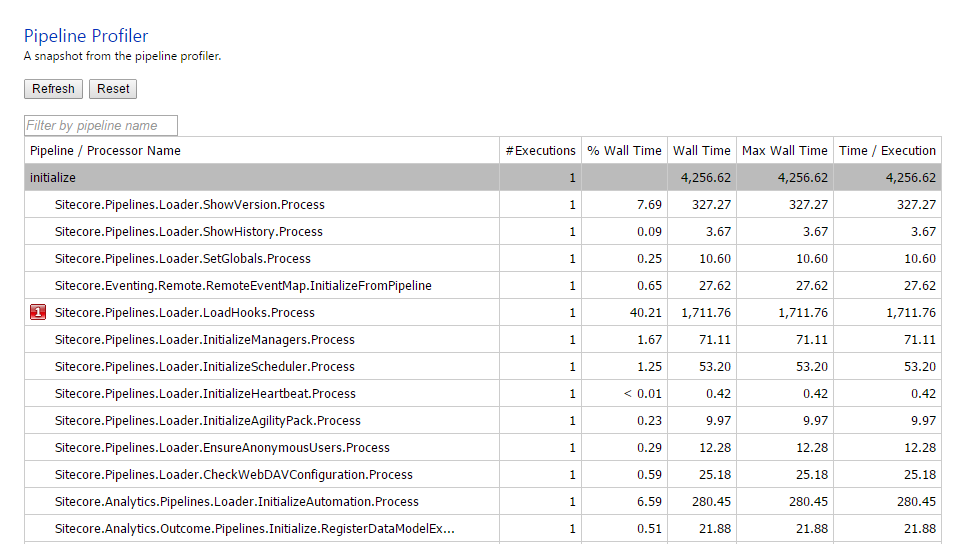
In Sitecore version 7, Sitecore introduced a new profiling tool, the Pipeline Profiler. From the Pipeline Profiler tool, you will be able to monitor performance and utilizations of all the Sitecore pipelines used by the Sitecore solution (the Sitecore client and the website). The Pipeline Profiler tool listing the profiling data for each of the pipeline processors. 

Getting this data, you will be able to pinpoint the processors spending most of the time and improve performance by optimizing those specific processors.

You access the Pipeline Profiler tool from yourDomain/sitecore/admin/pipelines.aspx (the same location as the stats.aspx, showconfig.aspx, dbbrowser.aspx etc). However, Sitecore disables the Pipeline Profiler tool by default:


To enable the tool, the only thing you need to do, is to enable the Sitecore.PipelineProfiling.config.disable (by removing the “.disable”) located at /App_Config/Include, and reload the Pipeline Profiler tool:


In Sitecore 8, the Sitecore.PipelineProfiling.config file contains only two settings, the “Pipelines.Profiling.Enable” and the “Pipelines.Profiling.MEasureCpuTime” respectively:

  
        <configuration xmlns:patch="http://www.sitecore.net/xmlconfig/" xmlns:set="http://www.sitecore.net/xmlconfig/set/">
            <sitecore>
                    <settings>
                    <!--  PIPELINE PROFILING ENABLED
                             Specifies whether or not pipeline profiling is enabled. When it is enabled, a profiling snapshot is available 
                             at /sitecore/admin/pipelines.aspx.
                             Default value: true
                    -->
                    <setting name="Pipelines.Profiling.Enabled" set:value="true" />

                    <!--  PIPELINE PROFILING MEASURE CPU TIME
                            Specifies whether or not the pipeline profiler measures CPU usage. Measuring CPU usage adds a performance overhead
                            to the pipeline but provides additional information about the behavior of the processors.
                            Default value: false
                    -->
                    <setting name="Pipelines.Profiling.MeasureCpuTime" set:value="false" />
                </settings>


Notice, the value of “Pipelines.Profiling.MeasureCpuTime” is false by default. Setting it to true, the Pipeline Profiling tool will measure the CPU usage as well:


If we add a new custom processor to the httpRequestPipeline etc. the new processor will be measured as well (In this case, the only thing the processor does, is sleep in 5 sec.)


Notice that Sitecore highlights the three processor of each pipeline taking most of the resource (indicated by the image number to the left of the processors).
The performance and utilization details declaration are at the bottom of the Pipeline Profiler tool: