A couple of
month ago, a customer asked me to change the way Sitecore normally handles the “Generate
new password” in the Security Manager. Change it so it only use alphanumeric Characters. I tried
convincing the customer not to do so, but I failed …
To change
the “Generate new password” in the Security Manager you only need to follow these 5 steps:
- Create your own GeneratePassword().It should do exactly the same as System.Web.Security.SqlMembershipProvider.GeneratePassword(), but instead of using modulo 87 (line number 39), it should use modulo 62 or 87 depending on whether to use alphanumeric characters or nonalphanumeric characters, respectively (it will make sense later in this post).
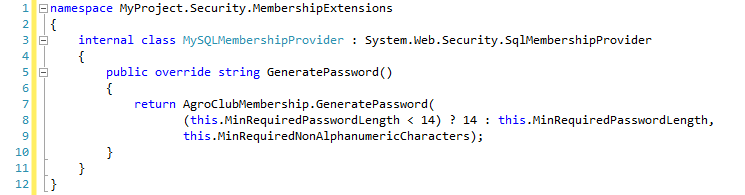
- Create your own SqlMembershipProvider and let it inherit from System.Web.Security.SqlMembershipProvider. The only thing this provider should do is to return your own GeneratePassword() (from step 1) instead of returning from System.Web.Security.Membership.GenereatePassword().
- In the web.config fil, add your new
SqlMembershipProvider (from step 2) into
. - In the web.config file, change the SitecoreMembershipProvider to use your own provider (from step 3) instead of Sitecore.Security.SitecoreMembershipProvider
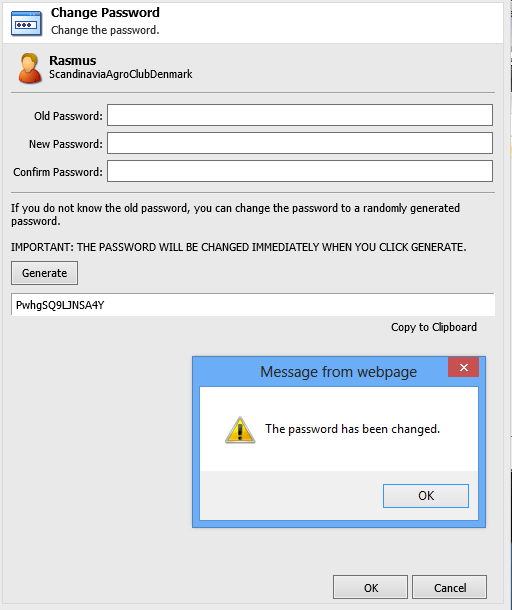
- Test the Generate New Password from the Security Manager in Sitecore Desktop
Create your own GeneratePassword()
Your own
GeneratePassword() should do almost the same as the System.Web.Security.Membership.GeneratePassword(). But, instead of
using modulo 87 you should use modulo 62 in the case, where only alphanumeric
characters should be used. This is done where the “int num2” is initiated (you will find the full
code in the end of this post).

NOTE: Making
it work, you should also add the following five methods from the
System.Web.Security.Membership (you find the code in the bottom of this
post):
- Private static char[] punctations
- Private static bool IsAtoZ(char c)
- Internal static bool IsDangerousUrl(string s)
- Private static char[] stratingChars = new char[]
- Internal static bool IsDangerousString(strings, out int matchIndex
Override the System.Web.Security.SqlMembershipProvider.GeneratePassword()
Your own
SQLMembershipProvider should inherit from System.Web.Security.SqlMembershipProvider
and only overriding the public string GeneratePassword() to return your own
GeneratePassword() method.
Add your own SQLMembershipProvider in the web.config file
In the web.config file navigate to section and add the new provider. Let all the settings be as the original SQL provider, but changing the use of System.Web.Security.SqlMembershipProvider to your own MyProject.Security.MembershipExtensions.MySQLMembershipProvider.
Instead of adding a new attribute defining whether to use alphanumeric or non alphanumeric characters, I let the [minRequiredNonalphanumericCharacters] do the trick. If this attribute is equal to zero only alphanumeric characters will be used, if greater than zero – the number of non alphanumeric characters will respect the specified number.

Change the SitecoreMembershipProvider to use your own
Changing the SitecoreeMembershipProvider to use your own SQL provider is a simple task. Navigate to the section in the web.config file and change the existing Sitecore provider to use your own.

Test the Generate New Password
Verify that
the Generate New Password only uses alphanumeric characters if the [minRequiredNonalphanumericCharacters]
is set to “0” and the use of non alphanumeric characters if the [minRequiredNonalphanumericCharacters]
is set to greater than 0
The Code:
Create your own GeneratePassword()
using System;
using System.Security.Cryptography;

namespace MyProject.Security.MembershipExtensions
{
 public static class MyMembership
 {

  public static string GeneratePassword(int length, int numberOfNonAlphanumericCharacters)
  {
   if (length < 1 || length > 128)
   {
    throw new ArgumentException("Membership_password_length_incorrect");
   }
   if (numberOfNonAlphanumericCharacters > length || numberOfNonAlphanumericCharacters < 0)
   {
    throw new ArgumentException("Membership_min_required_non_alphanumeric_characters_incorrect");
   }
   string text;
   int num4;
   do
   {
    byte[] array = new byte[length];
    char[] array2 = new char[length];
    int num = 0;
    new RNGCryptoServiceProvider().GetBytes(array);

    //Start: Added to change the standard behavior
                int numModulo = 87;
                if (numberOfNonAlphanumericCharacters == 0)
                {
                    numModulo = 62;
                }
                //End: Added to change the standard behavior

       for (int i = 0; i < length; i++)
    {
     //int num2 = (int)(array[i] % 87);
                    int num2 = (int)(array[i] % numModulo);
     if (num2 < 10)
     {
      array2[i] = (char)(48 + num2);
     }
     else
     {
      if (num2 < 36)
      {
       array2[i] = (char)(65 + num2 - 10);
      }
      else
      {
       if (num2 < 62)
       {
        array2[i] = (char)(97 + num2 - 36);
       }
       else
       {
        array2[i] = AlphanumericCharacters[num2 - 62];
        num++;
       }
      }
     }
    }
    if (num < numberOfNonAlphanumericCharacters)
    {
     Random random = new Random();
     for (int j = 0; j < numberOfNonAlphanumericCharacters - num; j++)
     {
      int num3;
      do
      {
       num3 = random.Next(0, length);
      } while (!char.IsLetterOrDigit(array2[num3]));

      array2[num3] = punctuations[random.Next(0, punctuations.Length)];
     }
    }
    text = new string(array2);
   } while (IsDangerousString(text, out num4));
   return text;
 }
 private static char[] punctuations = "!@#$%^&*()_-+=[{]};:>|./?".ToCharArray();

  private static bool IsAtoZ(char c)
  {
   return (c >= 'a' && c <= 'z') || (c >= 'A' && c <= 'Z');
  }

  internal static bool IsDangerousUrl(string s)
  {
   if (string.IsNullOrEmpty(s))
   {
    return false;
   }
   s = s.Trim();
   int length = s.Length;
   if (length > 4 && (s[0] == 'h' || s[0] == 'H') && (s[1] == 't' || s[1] == 'T') &&
    (s[2] == 't' || s[2] == 'T') && (s[3] == 'p' || s[3] == 'P') &&
    (s[4] == ':' || (length > 5 && (s[4] == 's' || s[4] == 'S') && s[5] == ':')))
   {
    return false;
   }
   int num = s.IndexOf(':');
   return num != -1;
  }

  private static char[] startingChars = new char[]
              {
               '<',
               '&'
              };

  internal static bool IsDangerousString(string s, out int matchIndex)
  {
   matchIndex = 0;
   int startIndex = 0;
   while (true)
   {
    int num = s.IndexOfAny(startingChars, startIndex);

    if (num < 0)
    {
     break;
    }
    if (num == s.Length - 1)
    {
     return false;
    }
    matchIndex = num;
    char c = s[num];
    if (c != '&')
    {
     if (c == '<' && (IsAtoZ(s[num + 1]) || s[num + 1] == '!' || s[num + 1] == '/' || s[num + 1] == '?'))
     {
      return true;
     }
    }
    else
    {
     if (s[num + 1] == '#')
     {
      return true;
     }
    }
    startIndex = num + 1;
   }
   return false;
  }
 }
Overriding the System.Web.Security.SqlMembershipProvider.GeneratePassword
namespace MyProject.Security.MembershipExtensions
{
 internal class MySQLMembershipProvider : System.Web.Security.SqlMembershipProvider
 {
  public override string GeneratePassword()
  {
               return MyMembership.GeneratePassword(
                    (this.MinRequiredPasswordLength < 14) ? 14 : this.MinRequiredPasswordLength,
                    this.MinRequiredNonAlphanumericCharacters);
  }
 }
}