Logging User Changing Password

How to extend Sitecore to log information, when user change password.

In Sitecore, you can subscribe to a significant number of default events and define if and how Sitecore should log information about the events (none, low, medium and high). From Sitecore v 8.1 the events are listed in the Sitecore config file located at “/App_Config/Sitecore.config” (previous versions of Sitecore the events are listed in the web.config file).

Sitecore logs different information about the user, when the user is created, deleted, when user information is updated, whenever a user logging in and out of Sitecore. There is no event about changing a user password, though.

If Sitecore should log information about change password for a specific user, one way to do this, is to override the System.Web.Security.SqlMembershipProvider.ChangePassword, add Sitecore log information to the ChangePassword method and change the SQL membership provider.

 The include file changing the membership provider:

    <membership defaultProvider="sitecore" hashAlgorithmType="SHA1">
      <providers>
        <add name="sql" type="MyExtensions.Providers.MyExtendedSqlMembershipProvider" connectionStringName="core" applicationName="sitecore" minRequiredPasswordLength="1" minRequiredNonalphanumericCharacters="0" requiresQuestionAndAnswer="false" requiresUniqueEmail="false" maxInvalidPasswordAttempts="256"  xdt:Locator="Match(name)" xdt:Transform="Replace" />
      </providers>
    </membership>


The override of the System.Web.Security.SqlMembershipProvider.ChangePassword:

namespace MyExtensions.Providers
{
    public class MyExtendedSqlMembershipProvider: System.Web.Security.SqlMembershipProvider
    {
        // Added logging for change password.
        public override bool ChangePassword(string username, string oldPassword, string newPassword)
        {
            var flag = base.ChangePassword(username, oldPassword, newPassword);
            var msg = "";

            if (flag)
            {
                msg = string.Format("AUDIT Password changed for '{0}' by '{1}'", username, Sitecore.Context.User.Name);
            }
            else
            {
                msg = string.Format("AUDIT Change password failed for '{0}' by '{1}'", username, Sitecore.Context.User.Name);
            }

            Sitecore.Diagnostics.Log.Info(msg, this);

            return flag;
        }
    }
}

Adding Custom Dialog to Rich Text Editor

Taking the scenario, you want to let the content editors insert some content into the Rich Text Editor, and you want the Rich Text Editor to wrap some html around the content. It could be adding an anchor tag around a phone number, with “href” attribute equals to the phone number or as in the following example a div tag with different class attribute around a YouTube iFrame, depending on whether the YouTube video is a format of 4/3 or 16/9, respectively.

It only takes the following five steps:

  1. Create a new HTML Editor Button in Rich Text Editor
  2. Create a new dialog and name it YoutubeManager.xml 
  3. Add a .js file used in the dialog and name it YoutubeManager.js
  4. Enhance the existing “RichText Command.js” file
  5. Create your codebeside to the dialog //YoutubeManager.xml file


Step 1) HTML Editor Button
Create a new HTML Editor Button place at the “HTML Editor Profile”, from where you want to use the new command. The “HTML Editor Profiles” are placed in the Core database and located at “/Sitecore/system/Settings/Html Editor Profiles/”. In this case, it is the “Rich Text Full” profile, I want to add the command into. 

Sitecore uses the “Click” field to define, which radEditorCommandList from the “RichText Command.js” to use, when using the command or “HTML Editor Button” in the Rich Text Editor (RadEditorCommandList["YoutubeManager"] = function (commandName, editor, args)) se step 4.


Assign an icon and a name to the “HTML Editor Button”. In this case the name is “Insert Youtube iFrame”. Save the new “HTML Editor Button”. Navigate to the Master database, select an Item using the “HTML Editor Profile” and verify the Rich Text Editor contains the new HTML Editor Button:


Step 2) Create a new dialog and name it YoutubeManager.XML
At “\sitecore\shell\Controls\Rich Text Editor\” create a folder with a name equal to the value of the “Click” field. In this case, I name it “YoutubeManager”. In this folder, you place your YoutubeManager.xml and YoutubeManager.js file. 

The YoutubeManager.xml dialog will opens, when selecting the Insert Youtube iFrame command created in step 1.

YoutubeManager.xml:
<?xml version="1.0" encoding="utf-8" ?>
<control xmlns:def="Definition" xmlns="http://schemas.sitecore.net/Visual-Studio-Intellisense">
  <RichText.YoutubeManager>
    <FormDialog Icon="People/32x32/movie_run.png" Header="Insert Youtbube" Text="Insert the IFrame code frome Youtube.com." OKButton="Insert">
      <script Type="text/javascript" Language="javascript" Src="/sitecore/shell/controls/rich text editor/youtubemanager/YoutubeManager.js">.</script>
      <CodeBeside Type="MySitecoreExtensions.Modules.RichTextEditor.Youtube, MySitecoreExtensions"/>
      <GridPanel Width="100%" Height="100%" Style="table-layout:fixed">
          <GridPanel Columns="2">
        <Checkbox ID="cbxYouTubeFormat" Class="checkbox" ToolTip="16:9 format if checked (default is 4:3 format)" /><Label For="lblYouTubeFormat">16:9 format if checked (default is 4:3 format)</Label>
          </GridPanel>
        <Memo ID="memYoutubeIframe" Style="height:75px;width:100%;border-top:1px solid #919b9c" ></Memo>
      </GridPanel>
    </FormDialog>
  </RichText.YoutubeManager>
</control>

Step 3) Add the YoutubeManager.js
This js file contains standard js functionality for handling the dialog, when using dialogs in the Rich Text editor. Create it, name it YoutubeManager.js and place it in the folder described in step 2.

function scClose(text) {
    var returnValue = {
        Text: text
    };
 
    getRadWindow().close(returnValue);
}
 
function GetDialogArguments() {
    return getRadWindow().ClientParameters;
}
 
function getRadWindow() {
    if (window.radWindow) {
        return window.radWindow;
    }
 
    if (window.frameElement && window.frameElement.radWindow) {
        return window.frameElement.radWindow;
    }
 
    return null;
}
 
var isRadWindow = true;
 
var radWindow = getRadWindow();
 
if (radWindow) {
    if (window.dialogArguments) {
        radWindow.Window = window;
    }
}
 
function scCancel() {
 
    getRadWindow().close();
}
 
function scCloseWebEdit(embedTag) {
    window.returnValue = embedTag;
    window.close();
}
 
if (window.focus && Prototype.Browser.Gecko) {
    window.focus();
}

Step 4) Enhance the existing RichtText Commands.js file
Add the following into the existing “RichText Command.js” located at “\sitecore\shell\Controls\Rich Text Editor”. What it does is, whenever you select the “YoutubeManager” command (from the Rich Text Editor), it opens the xml control named YoutubeManager (the one created in step 1).

RadEditorCommandList["YoutubeManager"] = function (commandName, editor, args) {
 
    var html = editor.getSelectionHtml();
 
    scEditor = editor;
 
    editor.showExternalDialog(
  "/sitecore/shell/default.aspx?xmlcontrol=RichText.YoutubeManager&la=" + scLanguage + "&selectedText=" + escape(html),
  null, //argument
  500, //width
  300, //height
  scYoutubeManager, //callback
  null, // callback args
  "Insert Youtube IFrame",
  true, //modal
  Telerik.Web.UI.WindowBehaviors.Close, // behaviors
  false, //showStatusBar
  false //showTitleBar
 );
};
 
function scYoutubeManager(sender, returnValue) {
    if (!returnValue) {
        return;
    }
 
    scEditor.pasteHtml(unescape(returnValue.Text), "DocumentManager");
}


Step 5) Create your codebeside to the YoutubeManager.xml 
This is the codebeside to the YoutubeManager.xml. It simply just add
tag around the Youtube iFrame.


using System;
using Sitecore.Web.UI.Pages;
using Sitecore.Diagnostics;
using Sitecore;
using Sitecore.Web;
using Sitecore.Web.UI.Sheer;
 
namespace MySitecoreExtensions.Modules.RichTextEditor
{
 public class Youtube : DialogForm
 {
  // Fields
  protected Sitecore.Web.UI.HtmlControls.Memo memYoutubeIframe;
     protected Sitecore.Web.UI.HtmlControls.Checkbox cbxYouTubeFormat;

 // Properties
  protected string Mode 
{
   get {
    string str = StringUtil.GetString(base.ServerProperties["Mode"]);
    if (!string.IsNullOrEmpty(str)) {
     return str;
    }
    return "shell";
   }
   set {
    Assert.ArgumentNotNull(value, "value");
    base.ServerProperties["Mode"] = value;
   }
  }

  //setup page
  protected override void OnLoad(EventArgs e) {
   Assert.ArgumentNotNull(e, "e");
   base.OnLoad(e);
   if (!Context.ClientPage.IsEvent) {
    this.Mode = WebUtil.GetQueryString("mo");
    string text = WebUtil.GetQueryString("selectedText");
 
    //set textbox text to selected text
    memYoutubeIframe.Value = text;
   }
  }
 
  //When pressed ok
  protected override void OnOK(object sender, EventArgs args) 
{
   Assert.ArgumentNotNull(sender, "sender");
   Assert.ArgumentNotNull(args, "args");
 
      string divClassYoutubeFormat = "embed-responsive-4by3";
      if (cbxYouTubeFormat.Checked)
      {
                divClassYoutubeFormat = "embed-responsive-16by9";
      }
    //Add div tag around the youtube iFrame
      string code = string.Format("
{1}
", divClassYoutubeFormat, memYoutubeIframe.Value); //encode it and send it back to the rich text editor if (this.Mode == "webedit") { SheerResponse.SetDialogValue(StringUtil.EscapeJavascriptString(code)); base.OnOK(sender, args); } else { SheerResponse.Eval("scClose(" + StringUtil.EscapeJavascriptString(code) + ")"); } } //When pressed cancelled protected override void OnCancel(object sender, EventArgs args) { Assert.ArgumentNotNull(sender, "sender"); Assert.ArgumentNotNull(args, "args"); if (this.Mode == "webedit") { base.OnCancel(sender, args); } else { SheerResponse.Eval("scCancel()"); } } } }

Finally, try to use the command. Select a YouTube video from youtube.com and copy the embedded code. Open the HTML Editor Button in the Rich Text Editor and paste the embedded code into the dialog.


Verify the YouTube video in “Design” mode:


Verify the YouTube video in “Html” mode:


Sitecore Extend Content Editor.js

I recently had a costumer, who wanted the Content Tree to be displayed by default in the Content Editor when editing an item through the Content Editor opened via Page Editor.

The following screen dumps will explain it…


Is it clear now?! :-)

Sitecore uses the “Content Editor.js” located at “/Sitecore/shell/Applications/Content Manager” when managing the behavior of the content editor. More specifically, it is the function “scContentEditor.prototype.initializeTree”, we should enhance. 

The functionality of the javascript varies slightly from version 6 and 7-8 in how to display the Content Tree Panel. 

Sitecore v7 – v8.1:

scContentEditor.prototype.initializeTree = function () {
    var ctl = scForm.browser.getControl("ContentTreePanel");

    if (ctl != null) {
        var visible = (scForm.getCookie("scContentEditorFolders") != "0") && (window.location.href.indexOf("mo=preview") < 0) && (window.location.href.indexOf("mo=mini") < 0) && (window.location.href.indexOf("mo=popup") < 0) || (window.location.href.indexOf("mo=template") >= 0);

        ctl.style.display = visible ? "" : "none";
    }
}


A slidely different in Sitecore v6:

scContentEditor.prototype.initializeTree = function () {
    var ctl = scForm.browser.getControl("ContentTreePanel");

    if (ctl != null) {
        var visible = (scForm.getCookie("scContentEditorFolders") != "0") && (window.location.href.indexOf("mo=preview") < 0) && (window.location.href.indexOf("mo=mini") < 0) && (window.location.href.indexOf("mo=popup") < 0) || (window.location.href.indexOf("mo=template") >= 0);

        ctl.style.display = visible ? "" : "none";

        var width = scForm.getCookie("scContentEditorFoldersWidth");

        if (width != null && width != "") {
            ctl.style.width = width;
        }
    }
}

What we want to do, is to make sure that the “var visible” is true, if the the Content Editor is opened through the Page Editor. When the Content Editor opens through the Page Editor, Sitecore adds the query string “sc_ce=1” to the URL. 

So, let us extend the function above with this  “|| (window.location.href.indexOf("sc_ce=1")”. Ending up with a javascript as following:

scContentEditor.prototype.initializeTree = function () {
    var ctl = scForm.browser.getControl("ContentTreePanel");

    if (ctl != null) {
        var visible = (scForm.getCookie("scContentEditorFolders") != "0") && (window.location.href.indexOf("mo=preview") < 0) && (window.location.href.indexOf("mo=mini") < 0) && (window.location.href.indexOf("mo=popup") < 0) || (window.location.href.indexOf("mo=template") >= 0) || (window.location.href.indexOf("sc_ce=1"));

        ctl.style.display = visible ? "" : "none";
    }
}

Sure, best practice is not to add the statement into the javascript, which Sitecore use. Instead, we should add the extended function into a separate javascript and enhance the Content Editor with the separated javascript. How do we add the javascript to the Content Editor?

Sitecore allow us to hook into the renderContentEditor pipeline to add controls into the head section of the standard Content Editor. This is exactly what we want to do. 

using System;
using System.Web.UI;
using Sitecore.Diagnostics;
using Sitecore.Pipelines;
 
namespace MySitecoreExtensions.Pipelines.ContentEditor
{
    public class AddScripts
    {
        public void Process(PipelineArgs args)
        {
            Sitecore.Context.Page.Page.Header.Controls.Add((Control)new LiteralControl(scriptTag.FormatWith("/MySitecoreExtensions/Content Editor/Javascripts/ShowTreeView.js"))));
        }
    }
}


Finally, we add the a new processor into the renderContentEditor pipeline :

<configuration xmlns:patch="http://www.sitecore.net/xmlconfig/">
    <sitecore>
        <pipelines>

<!-- render script to display content tree in page editor - Render content mode -->
            <renderContentEditor>
              <processor type="MySitecoreExtensions.Pipelines.ContentEditor.AddScripts, MySitecoreExtensions" patch:before="processor[@type='Sitecore.Shell.Applications.ContentEditor.Pipelines.RenderContentEditor.RenderSkinedContentEditor, Sitecore.Client']" />
            </renderContentEditor>
        </pipelines>
    </sitecore>
</configuration>

Sitecore Preview.ResolveSite

In Sitecore version 8.1 Sitecore has added the Preview.ResolveSite as a standard config setting. Previously, it was a hotfix ever since the initial release from Sitecore v. 6.6.0 up to Sitecore v. 8.0  https://kb.sitecore.net/articles/382913.

It is now a part of the standard settings, though it is set not to resolve site by default…

<!--  PREVIEW - RESOLVE SITE
  If false, the Preview.DefaultSite setting specifies the context site to use when a user previews an item.
  If true, when a user previews an item, Sitecore tries to resolve the root item and the context site based on the current content language
            and the path to the item. If Sitecore cannot resolve the context site, it uses the site that is specified in the Preview.DefaultSite setting.
            Default value: false (use the value of the Preview.DefaultSite setting)
      -->
    <setting name="Preview.ResolveSite" value="false"></setting>

Get external links from Rich Text Editor

Sometimes you want to manipulate links generated by the content authors added in the Rich Text Editor. It could be by adding query strings, set the target attribute to _blank if the link is an external link etc.

Sitecore resolves the internal links in the Rich Text Editor by using the ExpandLinks processor in the renderField pipeline (located in the web.config file) converting the GUID into valid URLs, but letting the external links unhandled. So if you want to manipulate external links, you could do it by adding a new processor into the renderField pipeline.

In this example, I want to add target=”_blank” if the link is an external link.

The code:

using System.Text.RegularExpressions;
using Sitecore.Data.Fields;
using Sitecore.Pipelines.RenderField;
 
namespace MySitecoreExtensions.Pipelines.RenderField
{
    public class AddTargetAttributes
    {
        public void Process(RenderFieldArgs args)
        {
            if (args.FieldTypeKey == "rich text")
            {
                args.Result.FirstPart = SetTargetAttribute(args);
            }
        }
 
        private string SetTargetAttribute(RenderFieldArgs args)
        {
            string fieldValue = args.FieldValue;
            string regexURL = @"(<a.*?>.*?</a>)";
 
            Regex regex = new Regex(regexURL, RegexOptions.IgnorePatternWhitespace | RegexOptions.IgnoreCase);
            MatchCollection matches = regex.Matches(fieldValue);
 
            foreach (Match match in matches)
            {
                if (!match.Success)
                    continue;

                string regexHref = @"href=\""(.*?)\""";
                Match maHref = Regex.Match(match.Value, regexHref, RegexOptions.Singleline);
                if (!maHref.Success)
                    continue;
 
                if (maHref.Value.ToLower().Contains("http://"))
                {
                    string enrichedURL = match.Value.Insert(2, " target=\"_blank\" ");
                    fieldValue = fieldValue.Replace(match.Value, enrichedURL);
                }
            }
 
            return fieldValue;
        }
    }
}


Finally I add a new processor to the renderField pipeline (into an include file):

<configuration xmlns:patch="http://www.sitecore.net/xmlconfig/">
    <sitecore>
            <renderField>
                <processor type="MySitecoreExtensions.Pipelines.RenderField.AddTargetAttributes, MySitecoreExtensions" patch:after="processor[@type='Sitecore.Pipelines.RenderField.GetInternalLinkFieldValue, Sitecore.Kernel']"/>
            </renderField>
    </sitecore>
</configuration>


Sitecore Language Fallback

Finally, Sitecore v. 8.1 support Language fallback out of the box.

The language fallback supports both at Item level and at field level and supports a chained fallback mode, where languages can fall back multiple times based on the associated langauges versions.

How does it work
The language fallback allows a developer to specify a default fallback language (for each of the language setting item in Sitecore) to use, when a visitor at the website request content that have not been created for the requested language version.

Template level
The “Tempalte Item” contains two new checkboks fields for handling the fallback language at item-level. The first checkbox “Enable Item Fallback” managing whether to use the fallback language, if the current item has no language version created for the requested language. The second checkbox “Enforce Version Presence” controls whether Sitecore should treat the specific item as non-existent, if the specific item has no versions created at the requested language.


Template Field level
The “Template Field Item” contains two new checkbox fields for handling the fallback language at field level, both placed at the “Data” field section. The first checkbox field “Enable Versioned Language Fallback” enables field-level fallback for only the current language version of the specific field. The second checkbox field “Enable Shared Language Fallback” enables the field-level fallback for the specific field in all languages. 


Specify the fallback language
To specify a fallback language for a specific language, Sitecore has added a field at the Language Setting Item in Sitecore (placed at: Sitecore/system/Languages/) called “Fallback Langauge”. If none is selected, the language has no fallback language. 

Enabling the fallback language features
Sitecore has added a new config file handling the language fallback settings. It is located at /App_Config/Sitecore.LangauageFallback.config. By default, the fallback language feature is disabled. To enable the fallback language, open the config file, find the two new site attributes, “enableItemLanguageFallback” and “EnableFieldLanguageFallback” respectively and set the attribute value to “true” (notice, the fallback feature is site specific):

<!-- ENABLE ITEM AND LANGUAGE FALLBACK PER SITE
         Using attribute patching below you can pick which fallback mode to enable (item-level or field-level or both) for each site 
         Consult official documentation on how to enable fallback feature in complex multi-site environments.
    -->
    <sites>
      <site name="shell">
        <patch:attribute name="enableItemLanguageFallback">false</patch:attribute>
        <patch:attribute name="enableFieldLanguageFallback">false</patch:attribute>
      </site>
      <site name="website">
        <patch:attribute name="enableItemLanguageFallback">true</patch:attribute>
        <patch:attribute name="enableFieldLanguageFallback">true</patch:attribute>
      </site>
    </sites>

Custom Tiles and Analytics Reports in Launchpad

Sitecore introduced the Launchpad in Sitecore 7.1, but was first a fullblown interface in Sitecore 8. Really, it has not been interesting until now that the Launchpad is the new default (and only) startup screen for all users.

So let’s take a look at how to customize the Launchpad.

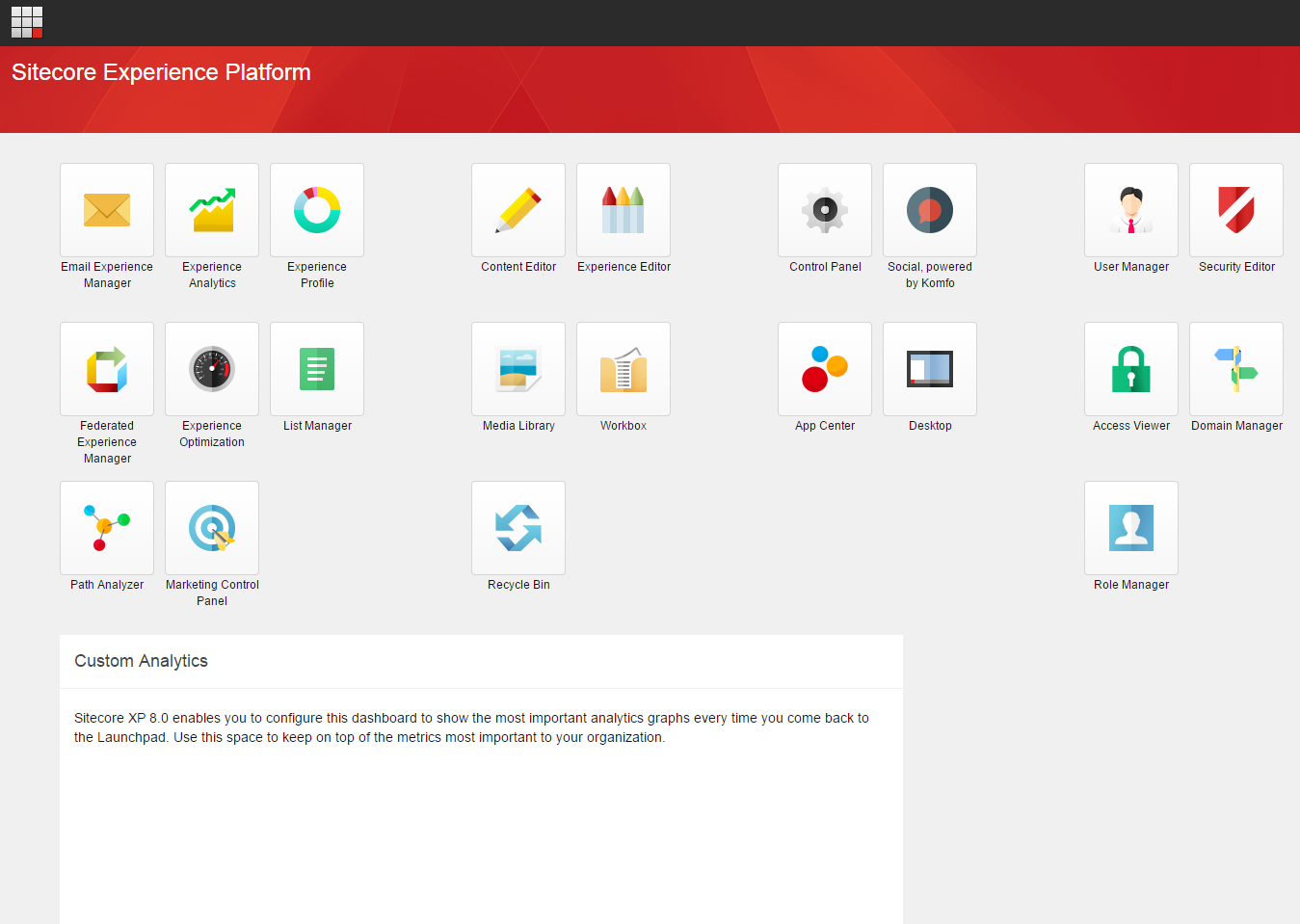
In this post, I will demonstrate how to add an analytic report chart into the Launchpad and how to hide the Fallback Message for Custom Analytics showing below.


In the example, I want to reuse one of the analytics reports displayed in the Experience Analytics. I will use the “Online interactions by visits and value per visit” analytic chart. 


The “Online interactions by visits and value per visit”-chart, used by the analytics reports, is located in the core database at “/sitecore/client/Applications/ExperienceAnalytics/Dashboard/PageSettings/” (If you want to extend the Experience Analytics application containing new reports etc. this is the place for adding the charts. More about that at another time). The chart contains to metrics, “Visits” and “Value per visit” respectively, and the dimension “All visits By Channel Type”. 


So far so good. 

Next step is to assign renderings to the layout of the Launchpad for displaying the analytic chart.

The Launchpad is built using SPEAK. SPEAK is only accessible through Sitecore Rocks. Therefore, before I will be able to create or customize any new Tiles or analytic reports in Sitecore Launchpad, I have to install Sitecore Rocks in Visual Studio. 

From Rocks navigate to “/Sitecore/client/Applications/Launchpad” in the core database. It is at the layout of the Launchpad you should add the new renderings for displaying the analytic chart. Select “Task” and “Design Layout”.


The layout of the Launchpad has associated many renderings by default, nested into each other. 


Eg. The LaunchBar-rendering, renders all the “applications buttons”-items placed under “/sitecore/client/Applications/Launchpad/PageSettings/Buttons” in the core database. The LaunchTiles-rendering, renders the “Tiles”-items placed under “/sitecore/client/Applications/Launchpad/PageSettings/Tiles” in the core database. Both renderings (LaunchBar and LaunchTiles) rendered the output into the placeholder “ColumnPanel1.Content” placed in the rendering with Id “ColumnPanel1”. These are not the tiles, we want to use in these example, though.

Taking a closer look, we see the Border-rendering with Id “RowPanelTilesWrapper” also rendered into the “ColumnPanel1.Content” placeholder. The RowPanel-rendering with Id “RowPanelTiles”, is rendered into the placeholder “RowPanelTilesWrapper.Content”. The RowPanelTiles is exactly the rendering we want to use, when rendering the Analytics Report chart.

As the name indicates, The RowPanel-rendering add a row-panel in the Tiles area of the Launchpad. Adding the analytic chart into the area of the Tiles, we first want to add a new column to place the chart. Therefore, select the “Add Rendering” command, choose the ColumnPanel rendering, and assign the rendering to the layout of the Launchpad. 


After assigning the ColumnPanel-rendering to the layout of the Launchpad, double click the rendering from the layout (the Renderings and Placeholder area) to open the “Edit Rendering Dialog”. Select the PlaceholderKey “RowPanelTitles.Content”. Set the GridColumns to 6 (This is where, you can manage the width of the column. Choose gridcolumn between 1-12). Finally specify the Id of the rendering (in this case it is “MyColumnPanelExperienceAnalytics”.


Next step is to assign the chart-rendering, we want to use, for displaying the chart. Select the “Add Rendering” command and select the ExperienceAnalyticsLineChart-rendering. 


Open the Edit Rendering Properties. Set “isVisble” attribute to “True”. Set the DataSource to “/sitecore/client/Applications/ExperienceAnalytics/Dashboard/PageSettings/Channels by visits” (The Analytic Report Chart I want to show in the Launchpad). Select the “MyColumnPanelExperienceAnalytics.Content” placeholder (specified by the MyColumnPanelExperienceAnalytics rendering we just added above). Set the Id to be “MyExperienceAnalyticsLineChart”. In the TimeResolution field you choose the default time resolution of the chart (Daily, Weekly or Monthly).


Save the layout. Log into your Sitecore Launchpad and you will find your newly added chart just below the application buttons. 


You may extend the Tiles area with a filter from where, you can filter the data in the chart. This is done by adding an ExperienceAnalyticsFilter and add a Header to the Tiles:


The last step is to hide the Fallback message in the Tiles area. Knowing how to add new renderings to the layout of the Launchpad, it is a simple task to hide the Fallback message. Find the “Border” rendering with Id “FallbackMessageBorder”, and open the Edit Rendering Properties dialog. Select the “IsVisble” attribute and set it to False. Save the Launchpad layout and redirect to the Launchpad in Sitecore. 


Now the “Custom Analytics” “FallbackMessage” dashboard is hidden. 


Damn ... that was a lot of screenshots ...